Best Ways to Play Car Simulator Games on PC
Playing car simulator games on PC can improve comfort, visibility, and control precision compared with a small mobile screen. Emulators, keyboard mapping, gamepad support, graphics settings, and steering wheel options all influence the experience. The best setup depends on whether the player wants casual cruising, parking practice, open world exploration, or more serious racing-style control with smoother performance.
Choosing the right PC setup
An emulator is the most common way to run mobile car simulator games on a computer. Players should choose one that supports stable frame rates, customizable controls, and sensible graphics options. For native PC simulators, the focus shifts toward hardware requirements, controller compatibility, and display settings.
- Keyboard controls are simple but may feel less precise for steering.
- Gamepads offer smoother throttle, braking, and camera control.
- Steering wheels create the most immersive setup when supported.
- Lower graphics settings can improve frame rate on older PCs.
- Control mapping should be tested before longer driving sessions.
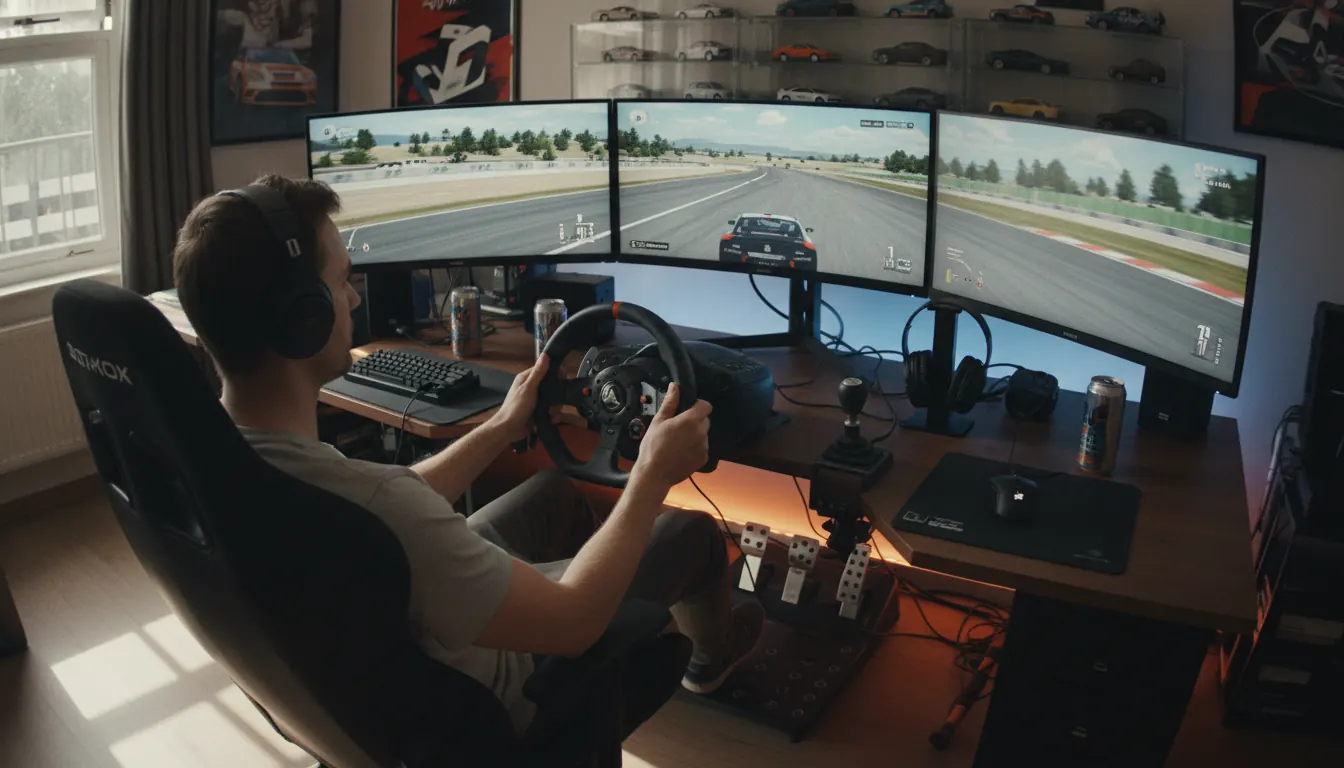
Control and performance comparison
Each input method has a different balance of convenience and realism. The best choice is the one that matches the player’s preferred driving style.
| Setup | Advantage | Best Use |
|---|---|---|
| Keyboard | Easy access | Casual driving |
| Gamepad | Smooth control | Racing and cruising |
| Steering wheel | High immersion | Simulation practice |
| Emulator tuning | Better stability | Mobile games on PC |
"A better PC simulator experience comes from balanced controls, stable frame rate, and clear visual settings."
Optimization tips
Players can improve performance by closing background programs, assigning enough emulator memory, lowering reflections, and matching resolution to their monitor. Control presets should be saved after testing. With the right setup, PC play can make car simulator games more comfortable, responsive, and visually readable.